1Password is now a trusted access layer for OpenAI’s Codex

by Dennis Kromhout van der Meer and Robert Menke
May 20, 2026 - 4 min
Related Categories
AI agents such as Codex are becoming part of the software development workflow. They can set up projects, write code, and run tasks, but those workflows also require access to credentials.
AI agents can only complete real development tasks when the workflows they run can access the credentials those tasks require. To avoid stepping in manually, developers often have to make those credentials available to the agent’s workflow. That creates a difficult choice: stay in the loop and slow the work down, or give the workflow access and risk exposing sensitive values. Solving this tension means giving agents only what they need, while keeping sensitive values protected.
1Password Environments gives developers a secure way to manage application credentials. The 1Password Environments MCP Server extends this capability into agentic workflows, allowing agents to create and manage Environments. Consistent with 1Password's security model, the MCP server does not return secret values. Instead, agents can help configure access and prepare projects while the underlying credentials remain managed in 1Password.
Connecting 1Password Environments to Codex
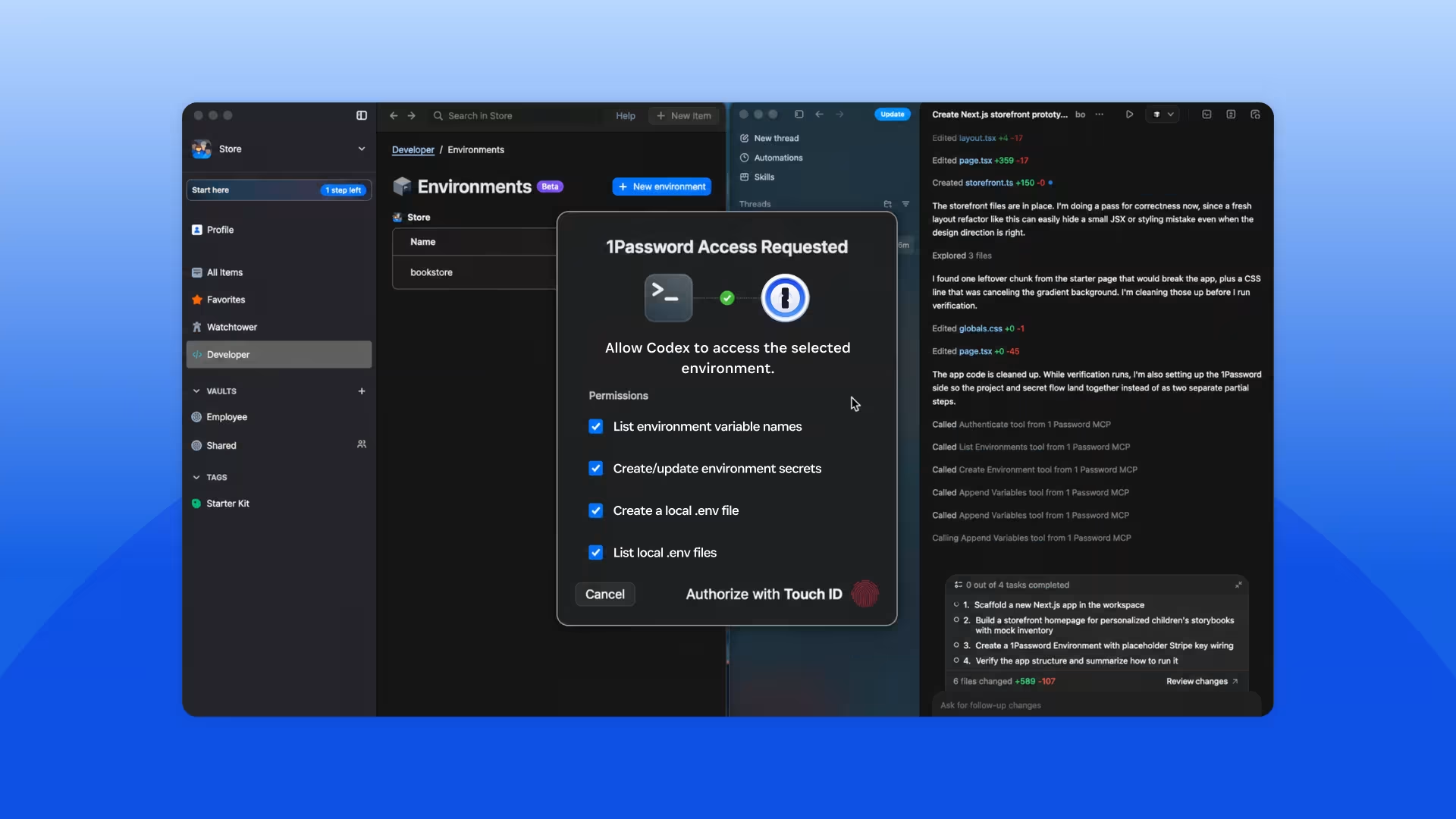
The 1Password Environments MCP Server is now available natively in Codex, making 1Password the trusted access layer for Codex. The integration connects Codex to 1Password Environments through a local MCP server, packaged in 1Password developer tools. When a developer asks Codex to set up a project or local environment, the server helps it provision the appropriate 1Password Environment. The application can then access the required secrets through a locally mounted .env file, without writing the values to disk.
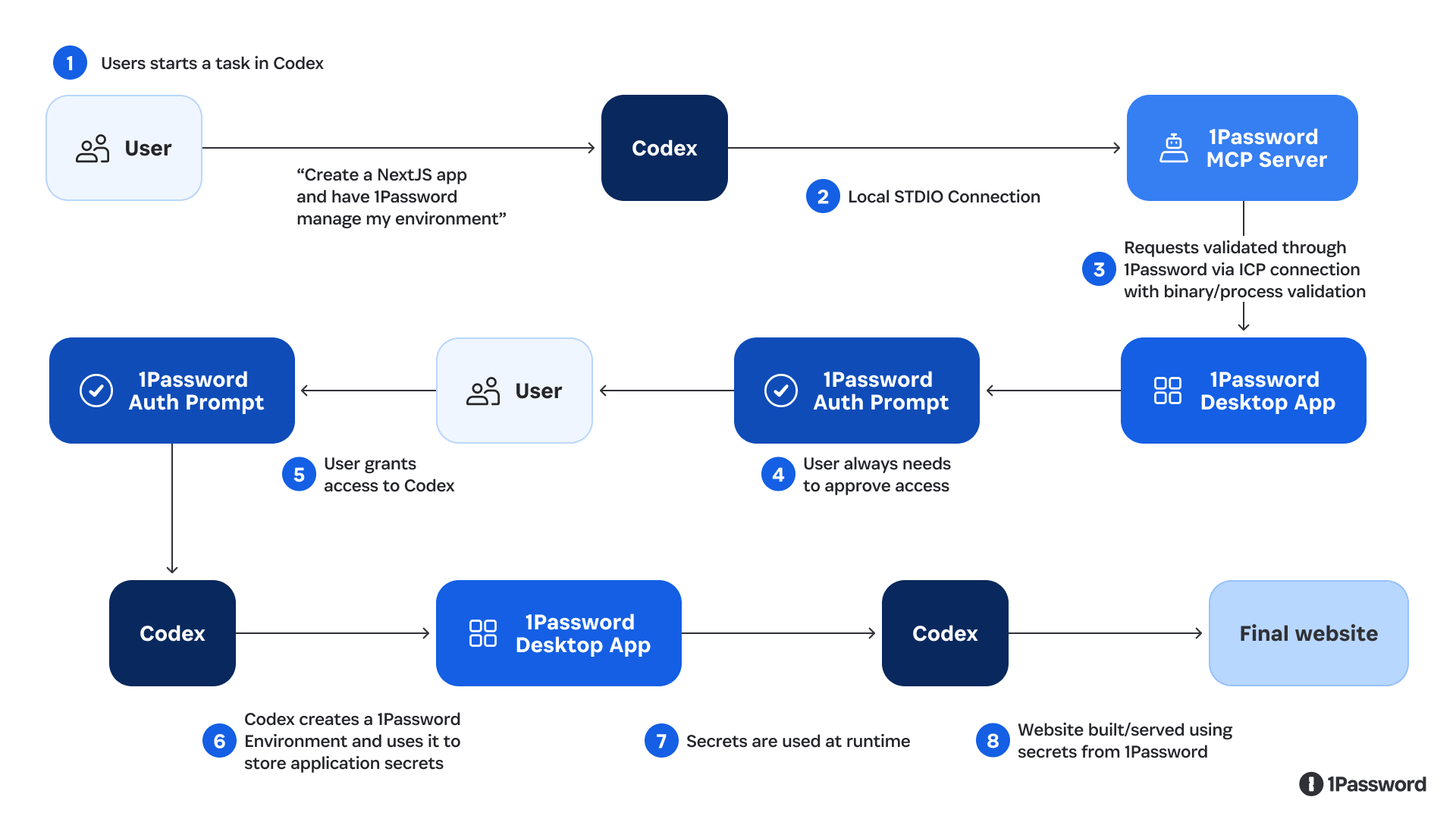
Here's what happens when a developer asks Codex to support their workflows:
Start a task in Codex: For example, ask Codex to create an app and configure the environment it needs.
Codex connects to the 1Password Environments MCP Server: The connection lets Codex discover and invoke the available MCP tools.
Codex creates and manages the Environment: Codex can create Environments, list and manage variable names, and prepare project configuration. The MCP server does not return secret values.
Applications use secrets managed in 1Password: Developers can use Codex to configure and troubleshoot application access while the required secrets remain managed in 1Password. Access remains governed through the 1Password desktop application, while centralized credential management stays intact.
What this unlocks for engineering and security teams
Codex becomes a simpler entry point to 1Password Environments. Engineering teams can set up and configure project environments from their agentic coding workflows, while security teams can direct developers to a secure place to manage their application and environment credentials. The MCP server helps to reduce friction with adopting agents into the software development lifecycle.
A broader access layer for AI agents
The Codex integration reflects a broader shift in how AI agents interact with software. As agents take on work that touches real systems and workflows, they need access to the credentials required to complete those tasks. The distinction matters: enabling a workflow to use a credential is different from giving that credential to the agent. The MCP Server connects Codex to environments managed in 1Password, so agents have a secure way to handle application credentials while 1Password remains the system of record for the credentials that agentic workflows use.
As AI coding tools evolve, the model stays consistent as we meet more developers where they work. 1Password remains the place where credentials are managed, while the MCP server helps agents work with project configuration.
How to get started
To get started, visit the 1Password Marketplace listing for step-by-step documentation on connecting Codex to 1Password using the local MCP server.
If you’re looking for a way to give AI agents and machine workloads access without creating standing credentials, the 1Password Unified Access Platform brings together Credential Broker and 1Password Privileged Access. Credential Broker authenticates requesters before delivering approved credentials, while Privileged Access governs just-in-time, just-enough access in destination systems.
Explore the 1Password Unified Access Platform and read about the Credential Broker public preview.