How 1Password SaaS Manager simplifies Salesforce user management

by 1Password
October 18, 2024 - 6 min

Related Categories
Provisioning in Salesforce can be more complex than the average SaaS application. 1Password SaaS Manager streamlines Salesforce user management by linking HR data and IdP triggers, ensuring that every employee has the right access throughout their lifecycle.
Salesforce is typically managed by a dedicated team of RevOps experts that do not necessarily report to IT. This is often because Salesforce is heavily customized to meet the needs of complex sales and marketing organizations.
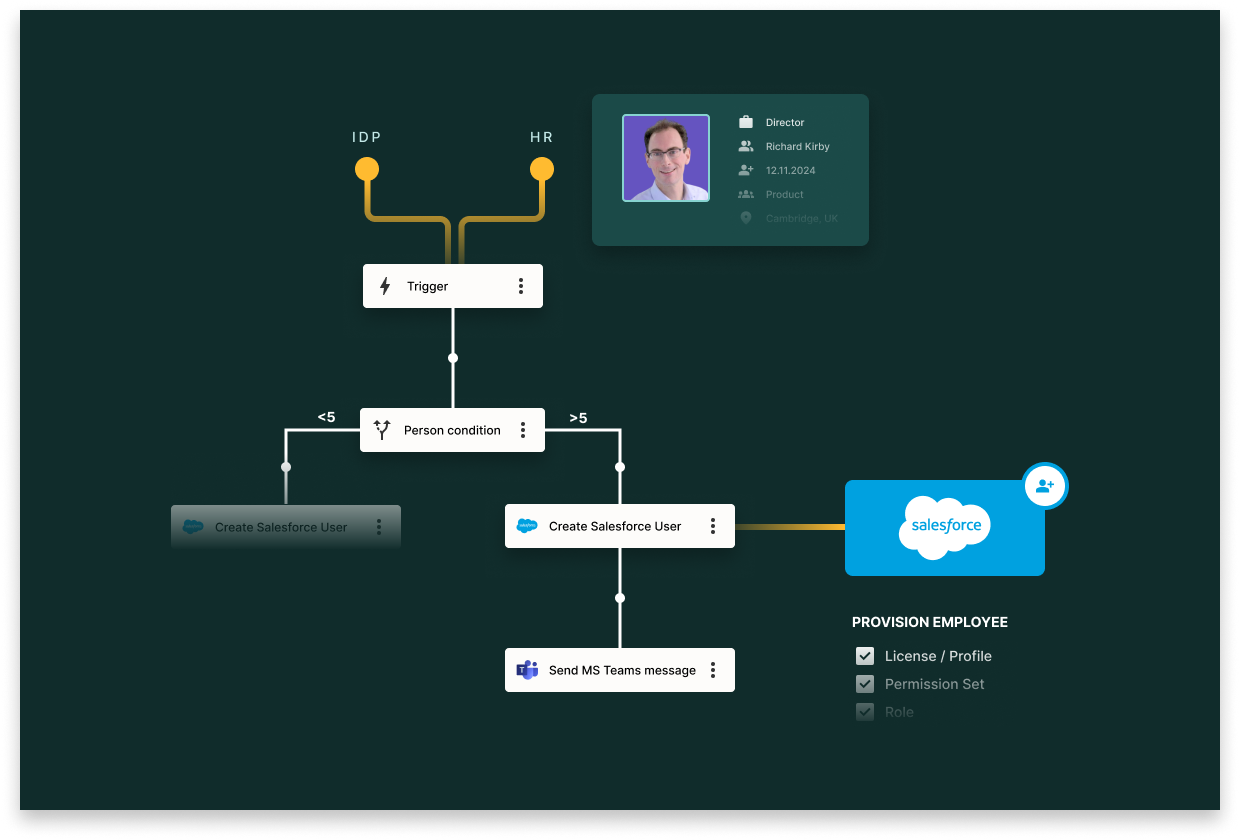
Handling provisioning in Salesforce is a critical task that requires care and precision. However, automating and streamlining this process is equally important, since it frees up the Salesforce team’s resources for more strategic business support.
In this article, we’ll show you how 1Password SaaS Manager can solve the problem with an out-of-the-box solution. So, whether you’re part of IT or a dedicated RevOps or Salesforce team, you’ll leave behind the custom-built, in-house solutions and save time, money, and hassle.
The difficulty of Salesforce provisioning
Salesforce automation can be complex because licensing and permissions depend on employee role, department, and other HR data.
Before we get into solutions, let's quickly identify the fundamental challenges with Salesforce provisioning:
Data dependency: Salesforce licensing often depends on employee data, such as role, seniority, department, etc.
Licensing complexity: Salesforce user management isn't just about creating a user account. It involves:
Licenses: Determining the appropriate license type (e.g., Sales Cloud, Service Cloud, Platform)
Permission sets: Assigning additional permissions that extend a user's access beyond their base profile
Salesforce profiles: Configuring pre-defined sets of permissions that also confer licenses
This intricate system means that proper Salesforce user provisioning requires careful consideration of multiple factors and precise configuration across several interconnected elements.
Managing employee data outside of your HR system for the sole purpose of provisioning in Salesforce poses a potential compliance concern. This is because it introduces additional data access points and potential security risks. It is also yet another piece of custom middleware and persistence to actively maintain.
While the HR system provides details required for correct provisioning in Salesforce, it’s not usually the trigger for a person to join. Typically, that would be the identity provider (IdP), like Okta, EntraID or Google Workspace. These systems provide real-time access to user lifecycle events and are also responsible for authentication and authorization.
Without a platform such as 1Password SaaS Manager to orchestrate provisioning, you’d also need to build out the integration with an IdP to trigger your custom workflows. SaaS Manager simplifies this process by providing seamless integration with your chosen IdP, ensuring user access to Salesforce is always up-to-date and secure.
Salesforce provisioning with 1Password SaaS Manager
What are the ingredients needed to make Salesforce provisioning seamless?
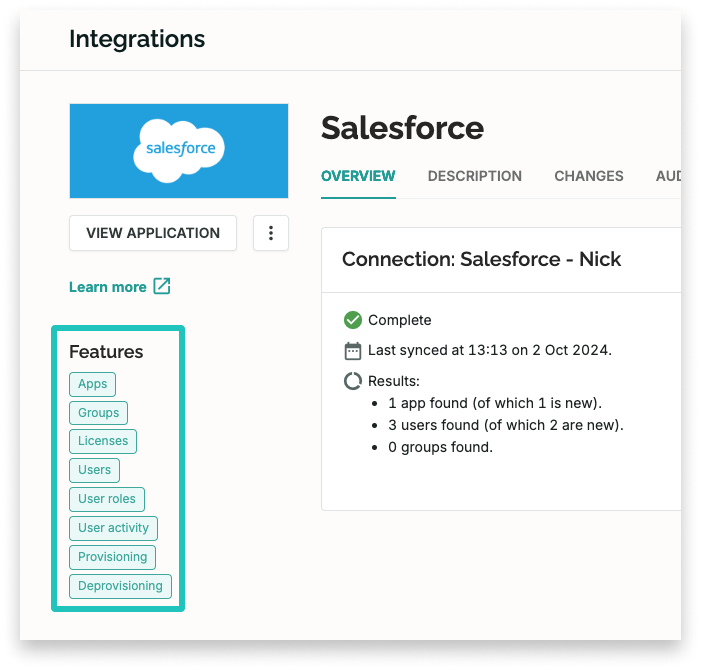
1Password SaaS Manager acts as Salesforce automation software to orchestrate user provisioning, profile assignments, and permission sets with HR and IdP triggers.
Employee and authorization data: SaaS Manager integrates with your HR system and IdP to gather critical information like seniority, team, and role and whether access should be provided to Salesforce.Salesforce data: SaaS Manager’s integration with Salesforce pulls in all standard and custom fields for users. So, there is no need to do any manual work after provisioning to update new users with the correct information.
Automated Workflows: SaaS Manager’s workflows provide a no-code solution for pulling all the data together at the right time to provision a user in Salesforce with the correct data.
Communication across teams: Send alerts on Slack, Teams, or email to Salesforce Owners, hiring managers, IT leads and more where it makes sense for you, whether at the beginning, middle, or end of the process. For example, you can set up alerts to notify the Salesforce admin when a new user is provisioned or to inform the user's manager when their access is ready. These alerts can be customized to suit your organization's specific needs and workflows.
Automating Salesforce provisioning with no-code workflows
Automating Salesforce provisioning workflows with 1Password SaaS Manager enables consistent, auditable automation across your organization.
Every organization we work with has different requirements for provisioning, but let’s use a simple example from one of our existing customers.
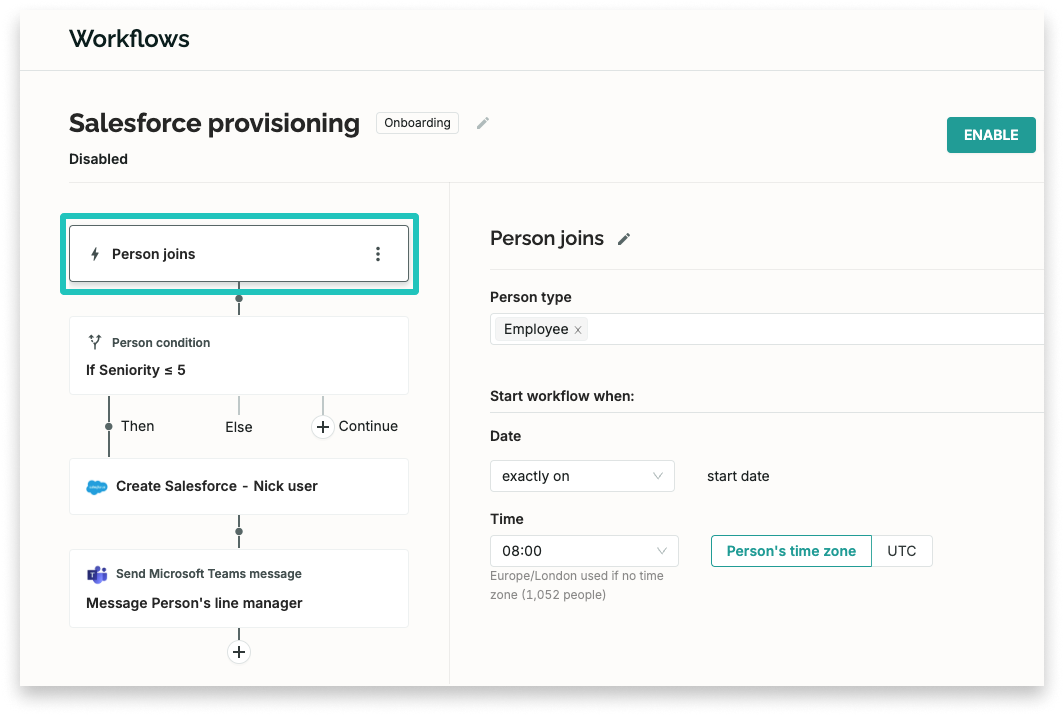
Step 1: Trigger the workflow
When a new employee joins, the Person joins trigger starts the Salesforce automation workflow.
Step 2: Apply a filter
The Person condition filter lets you decide who can pass to the next stage. One customer uses Seniority to decide what Salesforce license to provision, e.g., Standard vs. Platform.
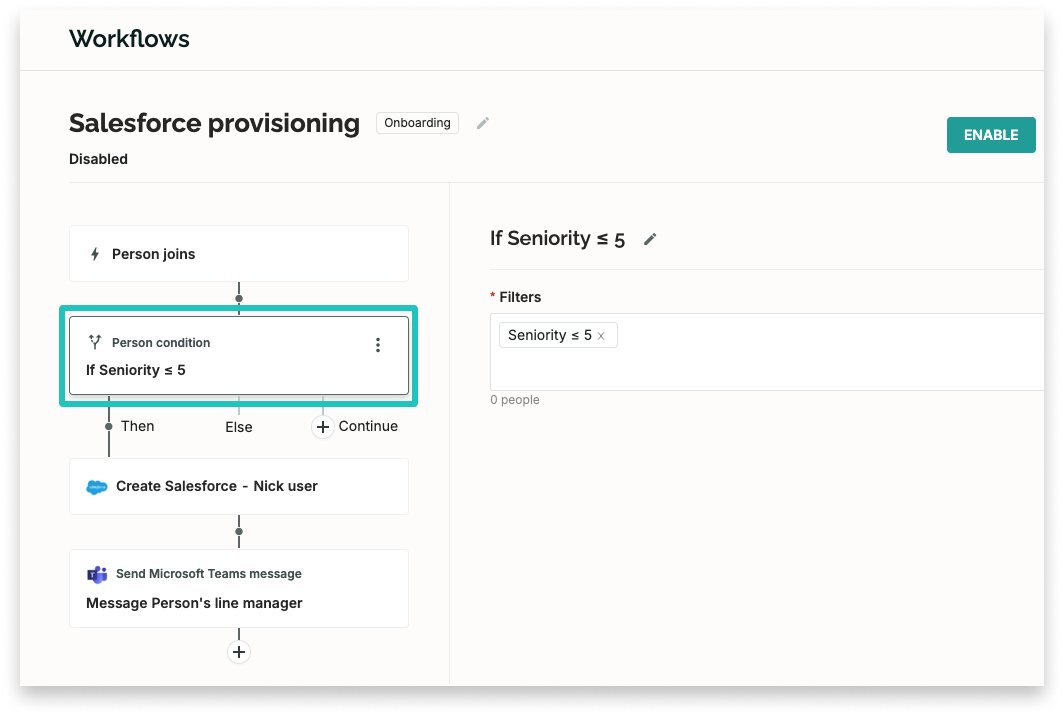
The filter step can use any attribute SaaS Manager syncs from your IdP or HRIS. The filter sends people matching one seniority level (>=6) down one arm of the workflow and the others (<6) down the other.
Step 3: Provision the user
1Password SaaS Manager streamlines Salesforce provisioning by enabling no-code Salesforce workflows to provision users, automate permissions, set assignments in Salesforce, and manage profiles without manual updates or writing custom scripts. This step handles Salesforce user management efficiently, ensuring each user has the correct profile and permissions without manual updates. Once the employee has passed the filter, they are assigned the relevant Salesforce profile/license combination in the specialized Create Salesforce user step.
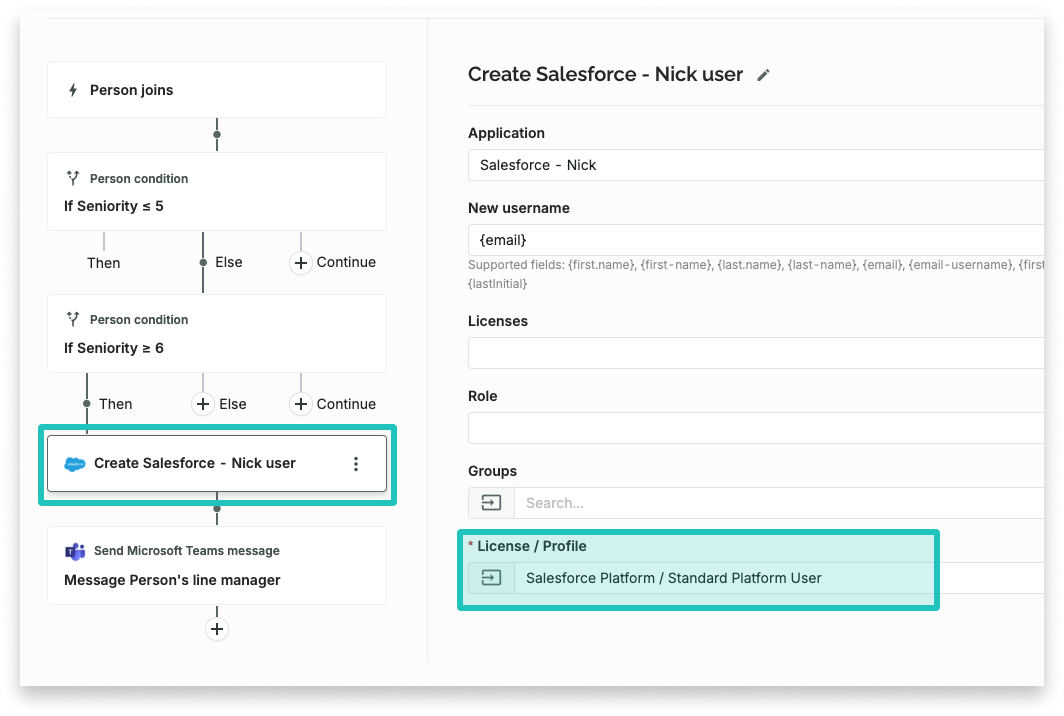
1Password SaaS Manager knows which fields are mandatory in Salesforce, so this is where automation ensures the correct Salesforce profile and permissions are applied. With centralized Salesforce lifecycle management, admins can enforce policies, automate permission assignments, and maintain audit-ready records without manual effort.
Step 4: Notify the right people
At the end of the workflow, we might add a step to notify relevant people of successful Salesforce automation outcomes.
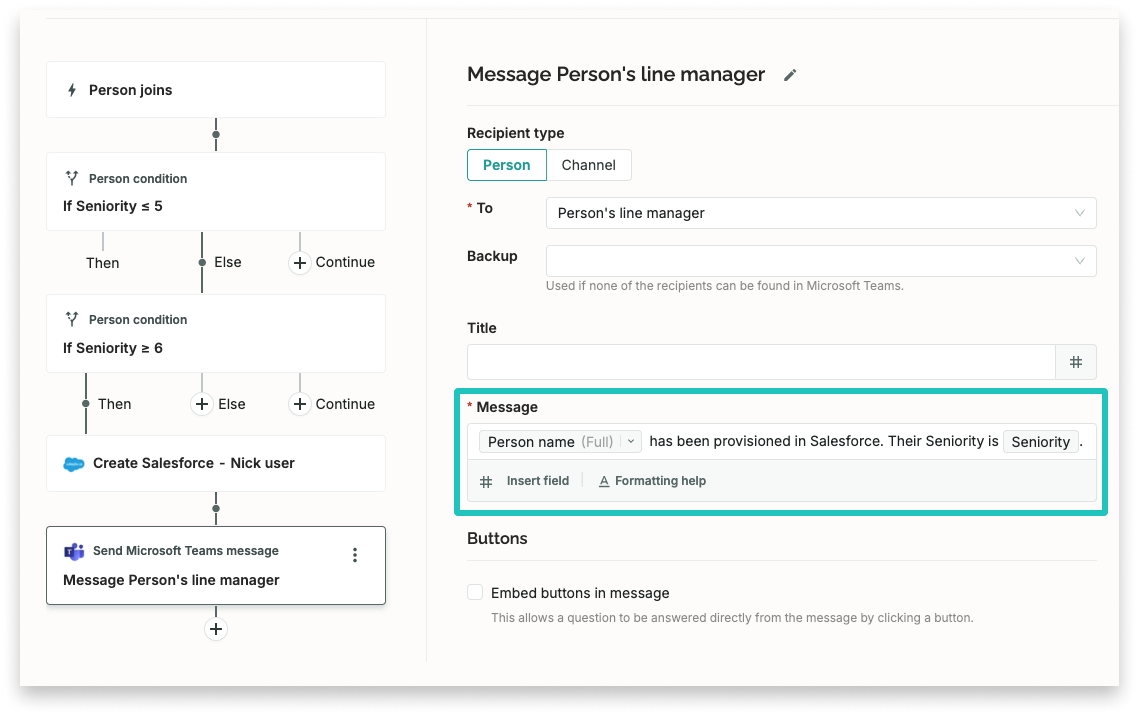
An example of this would be the Send Microsoft Teams message step. This could be the workflow owner, the Salesforce admin, or the person’s manager, for example.
Next steps
This simple example shows the power of automated workflows for provisioning new users. 1Password SaaS Manager also supports offboarding, access requests, and access reviews, helping teams maintain secure, auditable lifecycle management at scale.
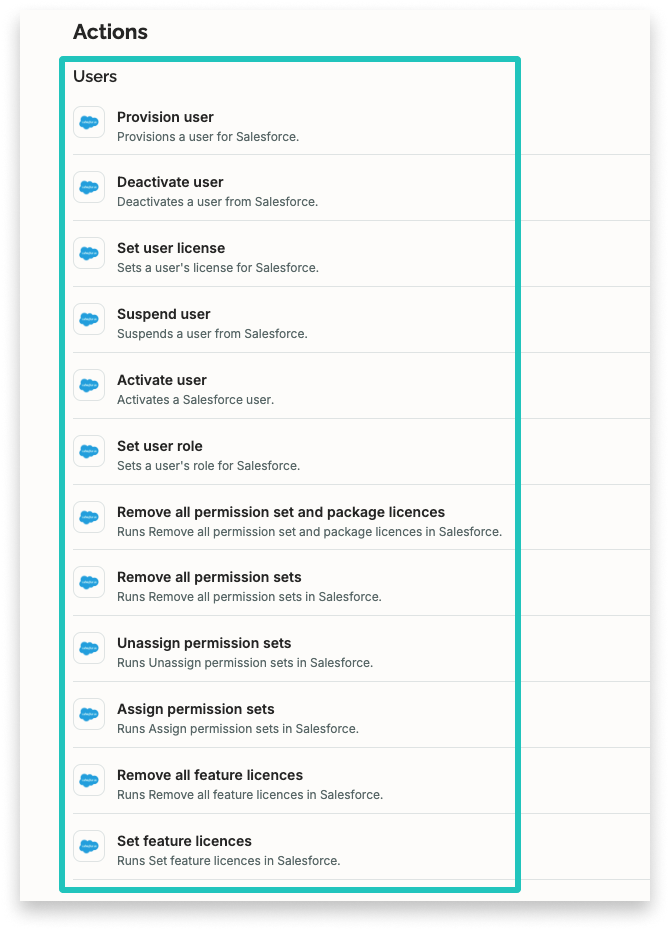
Password SaaS Manager simplifies complex business processes, allowing you to focus on other important strategic initiatives. There are a myriad of other automation use cases we could discuss, not least Salesforce offboarding. Here’s a flavor of the depth of our integration with Salesforce:
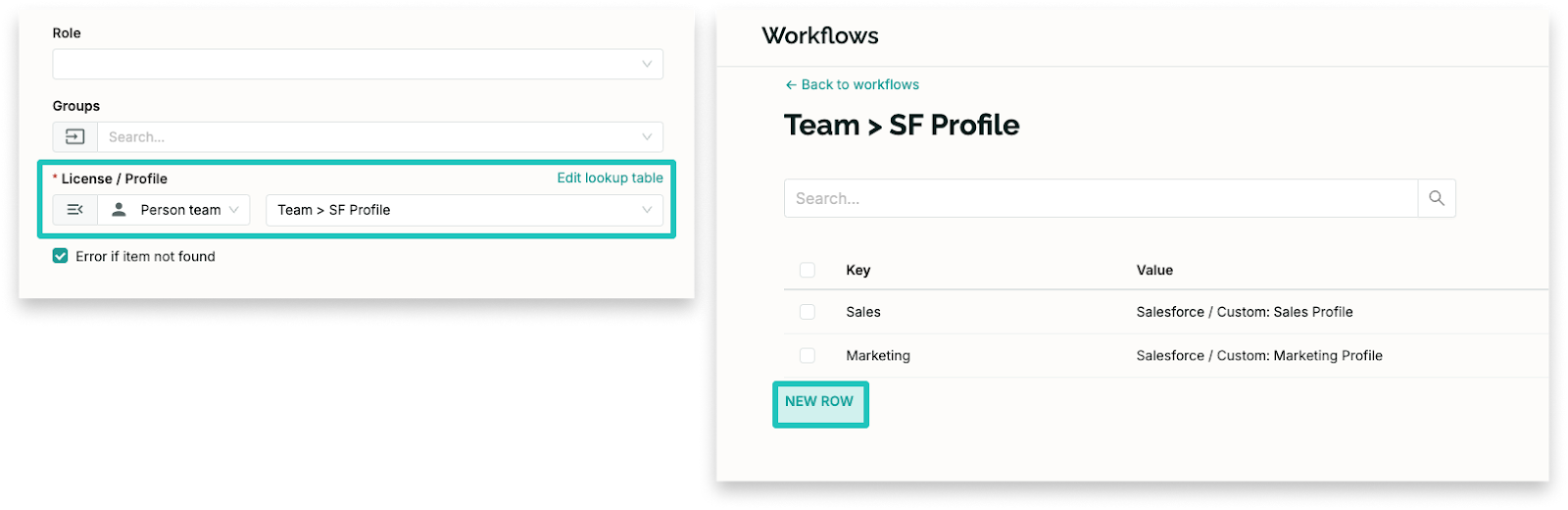
If the logic becomes more complex – for instance, if there are more than the two Salesforce user types included in the example above – SaaS Manager supports lookup tables to streamline the process. These lookup tables allow you to dynamically set Salesforce attributes based on reference values, using a simple array structure. This approach eliminates the need for numerous nested, conditional steps, which would otherwise result in a very complex workflow. By leveraging lookup tables, you can easily scale your lifecycle management while keeping your workflows efficient and maintainable.
For now, our message is this: If you’re a Salesforce admin or IT team in charge of Salesforce provisioning, let us help you bring it all together and streamline the process.
Talk to a 1Password expert today.